
While scrolling through Instagram, it seems photos with a vintage and classic feel are everywhere. Not only are these warm and grainy tones a blast from the past, but they’re also a welcome preset that’s easy on the eyes. Although you can’t go wrong with photographing an old VW bus or vinyl, you don’t even need classic props to achieve that vintage feel. That’s right—vintage tones are in, and you can join in on the trend as well, with any photo!
Choose Your Platform
There are so many different types of editing software out there, but for the sake of time, I’m going to focus on two. As a biased fan of Adobe, I’m going to propose that Lightroom is the ideal editing platform for your photo. Why? It’s fast, efficient, and it does a darn good job. The other platform is VSCO, a mobile app that allows for the use of presets along with other basic editing features. While VSCO is more beginner friendly, Lightroom takes some time to adjust to. Nonetheless, both of these applications can achieve a similar effect, but it all boils down to preference.
Lightroom is a favorite among photographers because it allows for a level of control over aspects of photos that many editors simply overlook. For example, while VSCO allows you to adjust light, contrast, and other universal features, it cannot reduce noise as Lightroom can. However, Lightroom and VSCO share many characteristics and settings that are perfect for any vintage photo.
What Is a Vintage Style?
Vintage can be described as classic, enduring, and old, and we want to preserve these qualities by reflecting them in our work. With that in mind, we can define a vintage style as a modern take on replicating the abilities of older cameras.
The “vintage” of today can be classified by adding fade, grain, blur, desaturation, and the like to our photos. Yes, vintage has become modernized, but the charm of older tech still lingers today. So let’s learn and review, some ways to add vintage tones are to:
- Fade and desaturate dark colors such as black
- Add grain
- Move the warmth slider to the right
- Mess with contrast
- Move the shadows slider to the right
- Decrease clarity by moving the slider to the left
These are some basic tips that are best fit to Lightroom, although they can be emulated in VSCO and other apps. With that, let’s see just how these elements work in synergy.
Lightroom
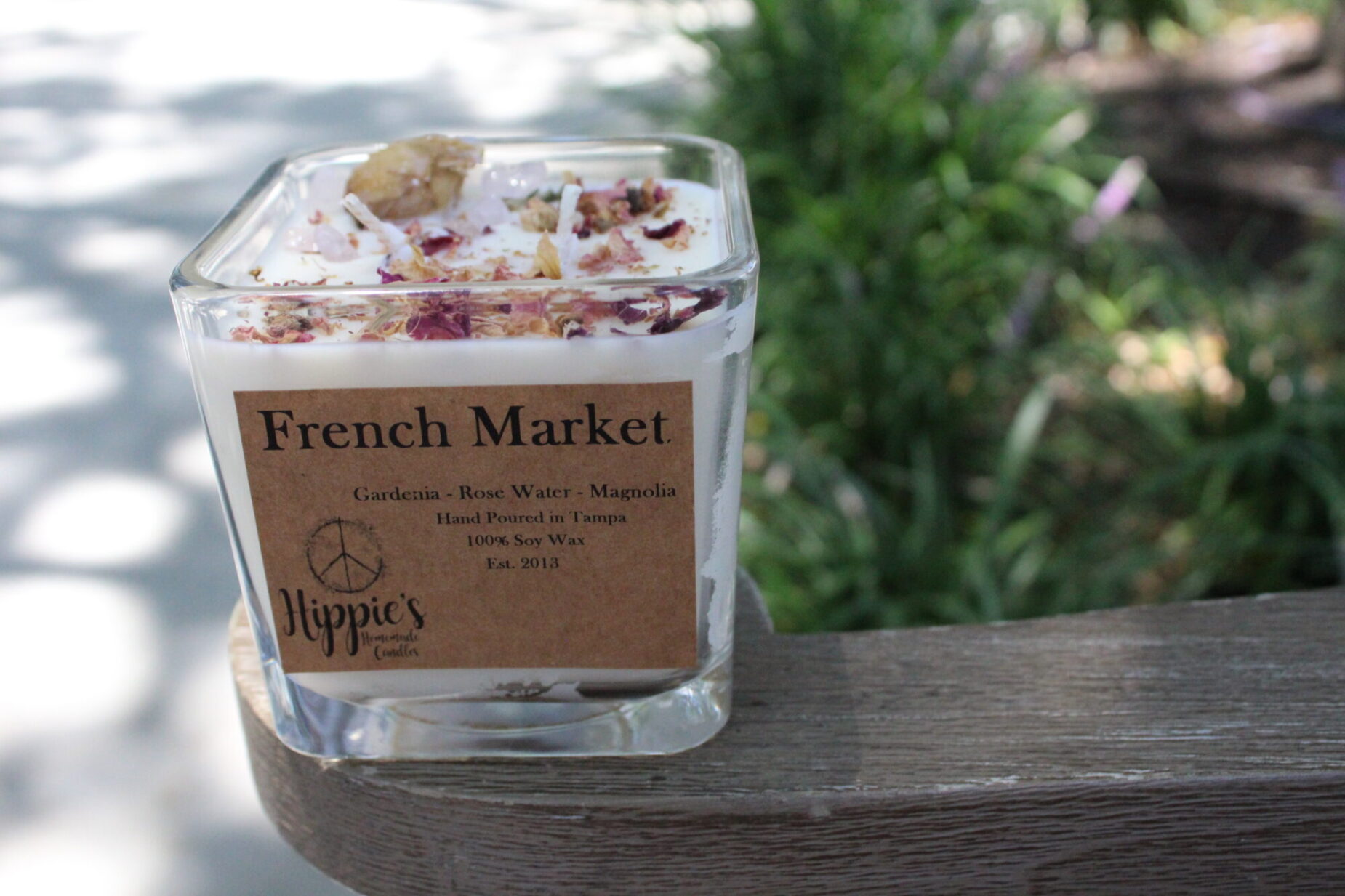
This is the before photo of a picture featured on my Instagram @curiouslylem. I approached this image with the intent to give it a vintage and nostalgic feel, so I started with a preset.
Pro tip: never feel ashamed about playing around with presets, they jumpstart creativity by giving you an idea of your end result.
For this photo, I used the preset “vintage instant” that comes preinstalled on Lightroom. From here, you can either increase or decrease the potency of the preset, and I decided to decrease it to leave more room for original edits. In a quick overview, I:
- Cropped and rotated the image
- Turned down the exposure, adjusted the contrast, and decreased highlights
- Moved the blacks slider to the right to fade dark tones
- Adjusted the white balance to +7 for a warm feel
- Used the color mixer to decrease the saturation of greens
- Added a vignette to frame the image
Out of personal preference, I did not add grain, but I was happy with the result—a modern candle with a vintage feel.

For more information on editing in a vintage style with Lightroom, you can reference EyeEm’s 4 Tips for Modern Vintage Photography.
VSCO

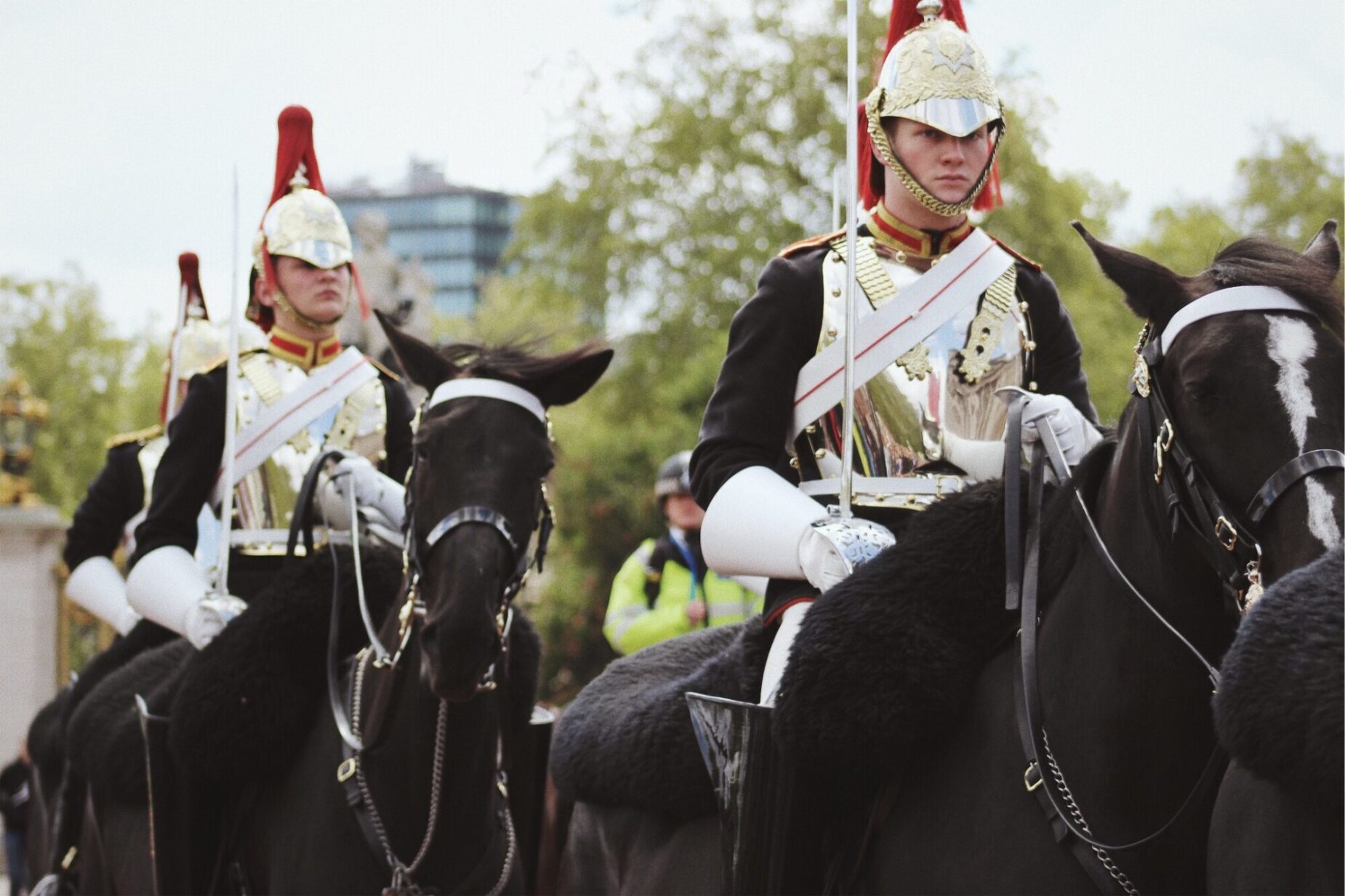
In VSCO, I began with this image taken at Buckingham Palace in London. I opted for VSCO because I didn’t have my laptop with Lightroom in Europe, and personally, I prefer the VSCO app to mobile Lightroom. Anyhow, this is how I edited this image:
- Set M/3 to +6.1
- Increased contrast by +1.8
- Increased exposure by +1.6
- Decreased saturation
- Lifted shadows by +1.4
- Pulled temperature slider left by +.06
- Added vignette of +1.1
- Adjusted grain to +2.7
- Added fade of +.05
Although the photo isn’t exponentially different, I’ve highlighted and added some vintage flair to the details. VSCO doesn’t allow for in-depth editing such as specific color manipulation as Lightroom does, but it’s the perfect introductory app into the art of editing.
For more information on vintage editing, Moment.com presents tips for mobile editing to imitate film.
Will you try any of these tips? Let me know below!